 CcsSync
Your United schedule,
in the calendar you already use.
CcsSync keeps your CCS+ flight schedule in Outlook or Google Calendar automatically — every trip, report time and change, checked every five minutes. No manual entry, ever.
Free for 30 days, then $20/year. Cancel anytime.
Prefer a direct download? Download for Windows
Built for the line
Outlook and Google
Writes into a calendar of its own inside your account, so your trips show up on your phone, watch and tablet without touching your personal calendars.
Always current
Checks CCS+ every five minutes. Reserve calls, reroutes and swaps land in your calendar as United publishes them.
Runs quietly
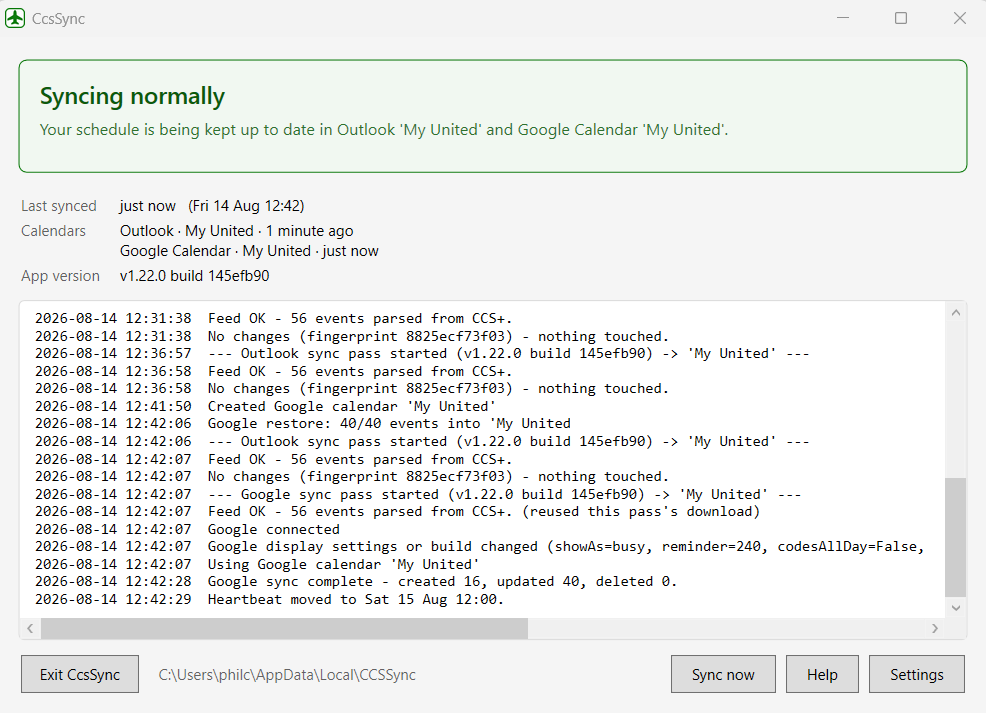
Lives in the notification area, starts with Windows, and tells you in plain language if syncing ever stops.
Your history, kept
United's feed only reaches back a few months. CcsSync keeps every trip it has ever seen, on your PC, and can export it any time.
How it works
- Start the trial Your license key is shown on the confirmation page and emailed to you. Nothing is charged for 30 days.
- Install CcsSync From the Microsoft Store in one click, or download it for Windows. Everything it needs is included.
- Activate and sign in Paste the key into Settings, then sign in with your own CCS+ details and choose Outlook, Google, or both.
- That's it Your trips appear in your calendar and stay current, including report times and trip changes.
Read the full install guide (PDF) — every screen, with pictures, from install to the first trips appearing.
What you need
Windows 10 or 11, your own CCS+ sign-in, and an Outlook (personal or Microsoft 365) or Google account for the calendar. One license key activates one PC at a time, and you can move it between PCs whenever you like.
Nothing else to install: everything CcsSync needs is inside the installer. It installs under your own Windows account and never asks for an administrator password. Your CCS+ details are stored encrypted on your PC and are never sent anywhere except United.
Downloading directly instead of using the Store? About the browser warning
CcsSync is digitally signed by CcsSync LLC, but browsers treat any program that has not yet been downloaded many thousands of times with caution. The Store route avoids all of this. If you download directly:
- Microsoft Edge: open the downloads list, choose the … menu on the file, and pick Keep. If a second box asks you to confirm, the button you want is inside the small arrow next to Delete — open it and choose Keep anyway.
- Google Chrome says the file “may be dangerous” and offers Download suspicious file. That is the one that keeps it — Chrome calls anything it has not seen often “suspicious”.
- If the file disappears from Downloads on its own, a browser security add-on has removed it. McAfee WebAdvisor and Norton Safe Web come preinstalled on many PCs and do this to newly published software. Switch them off on your browser's Extensions page, download again, then switch them back on.